
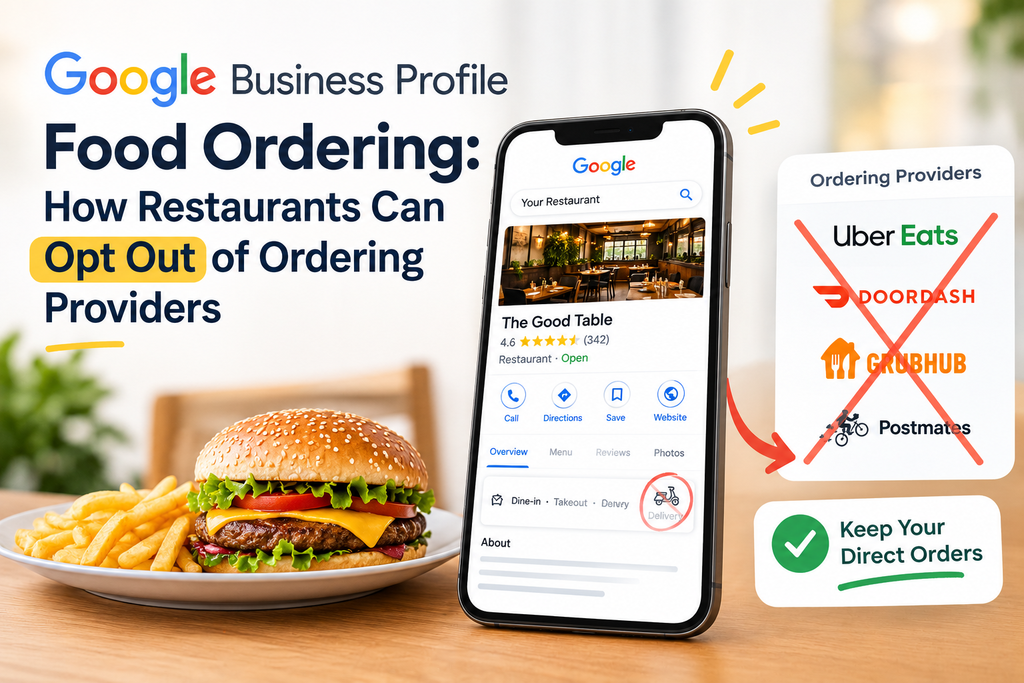
What Changed in Google Business Profile Food Ordering?
For years, restaurants had little say over which ordering links appeared on their listing. Google now requires third-party food providers to include a dedicated opt-out landing page in the Business Profile dashboard, whereas before owners often couldn’t remove these integrations.
The opt-out itself isn’t brand new. Years ago, Google My Business let restaurant listings remove online ordering links through a form that asked only for a name, email address, and ordering partner. The newer change makes removal more direct, because providers now have to offer an easy exit.
Here’s the context behind it. Restaurants had complained that Google added Order buttons through third parties without asking, and a Florida restaurant chain even sued over it. The opt-out grew out of that pushback.
Why Restaurants Want to Remove Third-Party Ordering Providers
The main reason is money. For many independent restaurants, the order link goes to a delivery marketplace that takes 15–30% of the order, even though the customer searched for the restaurant by name.
Other common reasons:
- Customer data: Direct orders let you build your own customer list.
- Brand control: Your menu, photos, and pricing stay consistent.
- Outdated agreements: Some owners signed a marketplace agreement years ago, or a provider simply swept their location into its feed.
If you’re in India, the same logic applies to apps like Swiggy and Zomato. Availability differs by country, though, so check which providers actually appear on your listing before you plan anything.
Step-by-Step: How to Remove Ordering Providers From Your Profile
Think of this as an audit first and a removal second. That order protects you from the biggest mistake: removing the wrong link, or assuming every provider can be removed in one click.
- Audit your listing. Open your profile on Search and Maps. Note every ordering link, and write down which provider each one points to.
- Check your agreements. Match each provider against the platforms you actually work with. Ask yourself whether you still want each one.
- Add your own link first. Make sure your direct ordering page works before you remove anything.
- Set your preferred provider. Restaurants can set preferred providers for pickup and delivery from the “Food Ordering” tab in their Business Profile, and customers may see a “preferred by business” badge.
- Request removal. Google’s food ordering contact form walks you through choosing the opt-out option, selecting your country, picking the provider to remove, and submitting. Some providers also have their own removal links or forms. DoorDash, for example, launched a Google Form that lets brands opt out of DoorDash, Caviar, or both.
- Check again in a week. One guide recommends this exact sequence: add your own link, set it as preferred, request removal of providers you have no agreement with, then recheck after a week.
Image 2 (after steps): A checklist graphic of the six steps.
Alt text: Checklist for removing third-party ordering providers from Google Business Profile food ordering
Image prompt: “Minimal infographic of a six-step checklist with icons for audit, link, preferred, removal, and recheck.”
Should You Remove All Third-Party Providers?
Not always. This is where owners get hurt. Search Engine Land warns that merchants should weigh the pros and cons first, since dropping these integrations can affect performance metrics.
For restaurants that rely on third parties as their only way to fulfill delivery orders, removing the links usually isn’t in their best interest.
| You have a working direct ordering site | Set it as preferred, then remove providers you don’t use |
| Delivery apps bring you most of your new customers | Keep them, but promote direct ordering |
| You have no agreement with a provider that appears | Request removal |
| You’re unsure about profitability | Compare orders and commissions before deciding |
A simple rule: keep the platforms that bring profitable orders, and push direct ordering where it’s practical. Before you remove anything, review order volume, commission fees, customer habits, and overall profit.
Common Mistakes to Avoid
- Removing a link before your own is live. Customers then have no way to order.
- Assuming one request covers everything. Each provider may follow its own process.
- Skipping the recheck. Confirm the change actually appeared.
- Ignoring the numbers. Removal feels good until order volume drops.
FAQs
Can I remove third-party ordering providers from Google?
Yes. Providers are required to offer an opt-out path, and Google also has a food ordering contact form for removal requests.
Will removing a provider hurt my Google ranking?
Nothing in the sources I found says it affects rankings directly. They do warn that it can affect performance metrics, so track your orders after the change.
Does the opt-out work in every country?
Availability varies. The form asks for your country, so check what applies to your market.
Can I keep some providers and remove others?
Yes. You choose per provider, which is often the smartest approach.
Do I need a direct ordering link first?
Strongly recommended. Add it and set it as preferred before removing others.
Conclusion
Google Business Profile food ordering finally gives restaurants real control over which providers appear. The steps are simple: audit your links, confirm your own ordering page works, set it as preferred, then remove only the providers that cost more than they earn.
Don’t rush it. Check every link and recheck after a week. Treat third-party apps as a tool you choose, not a default you accept.